









Introduction:
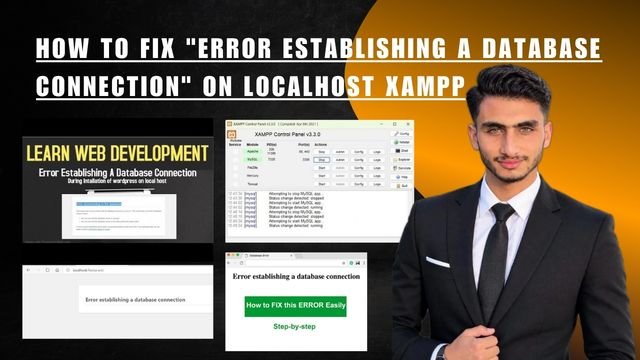
Look brother when you try to run WordPress or any custom PHP project on your local computer, and suddenly a white screen or a long error appears on the browser then the whole mood gets spoiled. This simply means that your web application is not able to establish communication with the database. In such a situation How to Fix “Error Establishing a Database Connection” on Localhost XAMPP becomes a common challenge that every web developer has to face in his local development phase.
Basically this error occurs when the MySQL service in the XAMPP control panel does Not start properly or if the credentials in your configuration files are mismatched. In this Srticle we Will delve deeper into why this Problem occurs and how you can Fix it quickly. Apache Friends Official Portal You can also check the latest versions and Documentation Of XAMPP by visiting so that Your local server environment is always up-to-Date.
Why XAMPP Fails to Connect to MySQL
So the Thing is XAMPP is a Local Server Package that bundles Apache MySQL PHP and Perl together. When you load your website WordPress or any PHP Script wp-Config.phpfile attempts to connect to the MySQL database. Otherwise if the database credentials (such as The Database Name Username or Password) do Not match or the MySQL service crashes on port 3306 The connection is Immediately Broken.
Actually Many times some 0ther software or Skype/World Wide Web Service in the background occupies the same port due to which MySQL Does not start.
Main Reasons Behind Localhost Database errors:
Incorrect Database Credentials in Config File: If You wp-config.phphave config.phpwritten the database name username (default root) or password incorrectly in the config file then an error is sure to occur.
Stopped or Crashed MySQL Service: If the MySQL module is not starting in the XAMPP control panel and unexpected shutdown is shown then the connection will not be established.
Corrupted Database Files (InnoDB Corruption): Sometimes due to system crash datathe files in XAMPP folder get corrupted due to which the database cannot be read.
Having understood this technical flaw let’s see how we can further improve our local server management through internal linking. You can also refer to our previous guide Complete WordPress Localhost Setup Guide You can also refer to in which the environment configuration has been explained in detail.
Fixes to Resolve Database Connection errors
The Most important thing is that instead of Panicking you should systematically check each component one by one. The solution is quite simple you just Need to carefully follow the Steps below to get your local server running smoothly again.
Verify and Update Database Credentials in Configuration File
Look brother first of all go to your project folder and wp-config.phpopen the configuration file ( ).
Check whether DB_NAMEDB_USER(which rootis by default) and DB_PASSWORD(which is blank by default) are correct or not.
If you set a new password and forgot to update it in the file that is the root cause. WordPress Developer Resources You can also verify the standard configuration parameters by visiting .
Check XAMPP Control Panel and Restart MySQL Service
Often this error appears on the screen due to the service not starting.
Open your XAMPP Control Panel.
If MySQL is already running stop it and start it again .
If port conflict is visible then go to configuration and change the port or close background interfering apps.
Repair Corrupted MySQL Database Using phpMyAdmin
If your database is accessible but the tables are not being read then a repair mechanism is required.
http://localhost/phpmyadmin/Open in browser .
Select your database tick all the tables with the checkboxes and select Repair Table or Analyze Table from the dropdown.
By doing this your corrupted tables will be fixed and your local server will start working without any interruption.
So the thing is, sometimes database errors and port conflicts in XAMPP’s local environment can be so troublesome that developers end up spending half their time just trying to fix the server. In fact there are many modern local development environments available today that overcome XAMPP’s old limitations without any hassle.
Otherwise instead of relying on the traditional XAMPP stack you can shift to new and automated local servers that handle database management automatically.
XAMPP for Local Development:
Local WP: If you are working specifically on WordPress projects Local WP is the ultimate alternative. It eliminates the need to manually fix database connection errors because it automatically sets up an isolated MySQL environment for each site. You can also read our internal guide. Top Local Development Tools for Web Developers You can explore its features by reading this.
Laragon: Laragon is a lightning-fast and lightweight environment for Windows users. It is much more stable than XAMPP and its MySQL services rarely crash so you won’t encounter database connection issues.
You can try these alternative local environments to see which tool makes your Development workflow (faster) and More reliable.
Advantages and Disadvantages:
Look when We talk about Local development servers and database error troubleshooting, it is very important to have a clear Comparison of Different tools and their performance parameters. In the table below we are compared XAMPP LocalWP and Laragon to help you understand which platform is the best.
Feature / Aspect XAMPP Local Server Local WP (WordPress Specific) Laragon (Windows Optimized)
Database Connection Stability Moderate (Prone to port conflicts) High (Automated DB handling) High (Very stable MySQL daemon)
Setup Complexity Manual configuration needed One-click installer Super fast and portable
Resource Consumption Medium to High Moderate Extremely Lightweight
Built-in Error Recovery Manual (phpMyAdmin/Config edits) Automatic service management Automated quick switches
Pros and Cons of Fixing Database Connection Errors on XAMPP
Pros:
It is completely free and gives complete freedom for all custom PHP/MySQL projects.
It is universal meaning any standard PHP script of the world can be easily run on it.
Full control is available on Apache and MySQL configuration files.
Cons:
If Skype or another server is running in the background it crashes repeatedly due to port 3306 conflict.
Database file Corruption Requires manual recovery which can Be difficult For beginners.
Frequently Asked Questions
Why Does MySQL keep Stopping Unexpectedly in XAMPP?
Basically this Problem Occurs when another Background application on port 3306 Conflicts with or mysqld.exeis improperly Terminated Causing Lock files to Become Corrupted.
How Can I recover my Corrupted database in XAMPP Without Losing data?
You can Backup your database Files by going to the XAMPP Folder mysql/datadirectory and if InnoDB crashes ibdata1you Can Recover the data by Replacing or Repairing the files.
Is the Database password empty by default in XAMPP?
Yes in (XAMPP) The default password of MySQL Root user is Completely blank hence the Password field in the configuration file Has to be Kept blank.
Why is Local WP better Even XAMPP for WordPress projects?
Local WP Creates (Independen)t containers and Databases for each site so that an error or database crash on one site does not Affect the other site and Connection errors Do not Occur.
How do I “change” the default MySQL port in XAMPP?
‘Click on the Config Button given in front of MySQL in XAMPP Control Panel My. iniopen the file Port=3306change it to some Other Port (like 3307) and Save it’.
Final Think
Most importantly do not let Database errors stop your coding projects! Check your XAMPP configuration today or streamline your Local development by Switching to modern tools. Share this informative post with your developer friends and take a step forward in The coding world!