









Introduction:
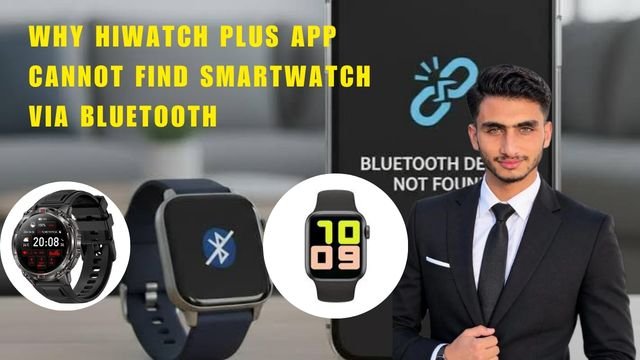
Look after buying a new smartwatch if it doesn’t pair with your phone all the fun is ruined. You refresh the app again and again turn Bluetooth on and off but the screen just keeps showing Scanning. or Device Not Found. This problem is not only with you but thousands of users face it when it comes to Why HiWatch Plus App Cannot Find Smartwatch via Bluetooth .
In fact when you’re excited about your new gadget these technical glitches can be a major mood killer. The thing is there are often trivial reasons behind this issue—like Bluetooth permissions being disabled another device being connected in the background or an outdated version of the app. In this guide we’ll explain step-by-step how to root out this problem so you can resume your fitness tracking without a hitch.
Why is this Bluetooth connection error occurring?
‘This simply means that your phone and smartwatch are Not properly handshaking each other’s frequency or signal. Bluetooth pairing is a process where both devices need to understand each other’s language’.
Otherwise, if the settings on either side are Wrong the connection will not be established. In the real world there are a few main reasons why this issue occurs:
-
Location Permissions Disabled: Bluetooth scanning on Android and iOS devices requires Location (GPS) to be on and the app to have permission. If you deny permission the app will not be able to detect the watch.
-
Background Interference: Sometimes the smartwatch is already connected to your phone’s native Bluetooth settings. In such a situation when you search within the HiWatch Plus app the app may have a conflict finding the device.
-
Outdated App Version: If your HiWatch Plus app version is old then its protocol may not match with smartwatches with new firmware.
-
Low Battery Issues: If the watch or phone’s battery is very low the Bluetooth modules go into power saving mode which weakens the signal strength.
You can read more technical details about this. Bluetooth SIG Official Guide But where wireless pairing protocols are explained.
HiWatch Plus App Bluetooth Connection Fix
Look if your device still isn’t connecting there is no need to panic. Just follow the steps below carefully and solve your problem in no time.
The device from the phone’s Bluetooth settings
First go to your phone’s main Bluetooth settings. ‘If your smartwatch’s name is listed there and it is Connected or Saved click on it and select Forget This Device or Unpair’.
-
“Why it is important: While the watch is stuck to the phone’s native Bluetooth third-party apps like HiWatch Plus can’t access it”.
Location and Nearby Devices Permissions Check
Go to your phone’s Settings > Apps > HiWatch Plus .
-
Go to the Permissions section and check whether the Location and Nearby Devices (for Android 12+) permission is set to Allow only while using the app or not.
-
If it’s off turn it on immediately. Don’t forget to keep your phone’s GPS on as Bluetooth scanning doesn’t work without location in modern OSes.
Reset and restart the watch
Restart your smartwatch once. You can also try the factory reset option in its settings menu if old data is lost.
-
Restarting refreshes the watch’s Bluetooth module and allows it to emit fresh signals.
Scan again through the HiWatch Plus app
Now turn on the Bluetooth of the phone, but do not connect directly to the Bluetooth .
-
Now open the HiWatch Plus app, go to your account and tap “Add Device” or “Scan.” You’ll see your watch’s name appear on the screen. Tap it to successfully pair!
Smartwatch Apps
Look let’s say you’ve tried all the methods but the HiWatch Plus app still refuses to connect and the connection error keeps popping up. There’s no need to panic as there are some excellent alternatives available on the market that support similar smartwatches (like the T500, D20, or Series 8/9 clones).
-
FitPro App: This is the most popular alternative that works easily with budget smartwatches. Its interface is a bit simpler and Bluetooth pairing issues are significantly less common. You can learn more about it here Google Play Store FitPro Listing.
-
HryFine App: If your device is based on a different generic chipset than the HiWatch series, HryFine may be a better choice. It handles notifications and Bluetooth call sync very smoothly.
HiWatch Plus vs. Popular Apps
With the help of this table you can easily understand what is the difference between HiWatch Plus and other apps and why some apps give better performance:
‘Feature / Parameter HiWatch Plus App FitPro App HryFine App’ ‘Bluetooth Stability Medium (requires strict GPS Permissions) High (stable background Sync) High (Fast Reconnect speed)’ UI & Ease Of Use Moderate (Clean Design) Very Easy (beginner-Friendly) Moderate (Feature-Packed) Notification Sync Good (Agar background restriction na ho) Average (sometimes there is a delay) Excellent (Instant alerts) Battery Optimization Moderate drain Low background drain Low background drain Pros and Cons of HiWatch Plus App
In fact every app has its own advantages and disadvantages. If you are using the HiWatch Plus you should know the following:
Pros (Benefits):
-
Clean Interface: ‘Its Design is quite modern and user-friendly making it easy to view fitness stats’.
-
Watch Faces Customization: You Can easily set new wallpapers and custom photos on watch.
-
Health Metrics: ‘Heart rate sleep Tracking and basic workout modes offer good data sync’.
Cons:
-
Strict Permissions: ‘If the phone’s battery Optimization is even slightly aggressive, the app disconnects in the background’.
-
Compatibility Issues: ‘On some newer Android versions, this app takes some time to detect the watch’.
Frequently Asked Questions (FAQs)
Can The smartwatch be Used without the HiWatch Plus app?
In simple terms yes you can use the watch for basic time checking. But time synchronization weather updates fitness tracking and smartphone notifications require the app to be installed and Bluetooth paired.
Why does the Bluetooth connection keep dropping?
The main reason for this is the phone’s aggressive battery saving settings. When the phone closes an app in the background the Bluetooth connection is broken. To fix this set the app’s battery optimization to “Unrestricted” or “Don’t Optimize.”
Does the HiWatch Plus app work on both iPhone and Android?
Yes, this app is available on both the Google Play Store and the Apple App Store. However, on iOS, permissions need to be manually granted due to Apple’s strict Bluetooth privacy policies.
What to do if the app doesn’t show the watch name?
First, turn off and then turn on your phone’s Bluetooth and Location toggles. Then, restart your watch and run a fresh scan in the app. If it still doesn’t appear, remove all previously paired devices from your phone’s main Bluetooth list.
Does resetting the smartwatch delete data?
‘Performing a factory reset resets unsynced fitness data and local settings within the watch’. However, data that has already been synced to the HiWatch Plus app or the cloud remains intact.
The most important thing is that tech stuff can be frustrating sometimes but with a little patience and following the right steps you can fix every problem!
-