









Introduction:
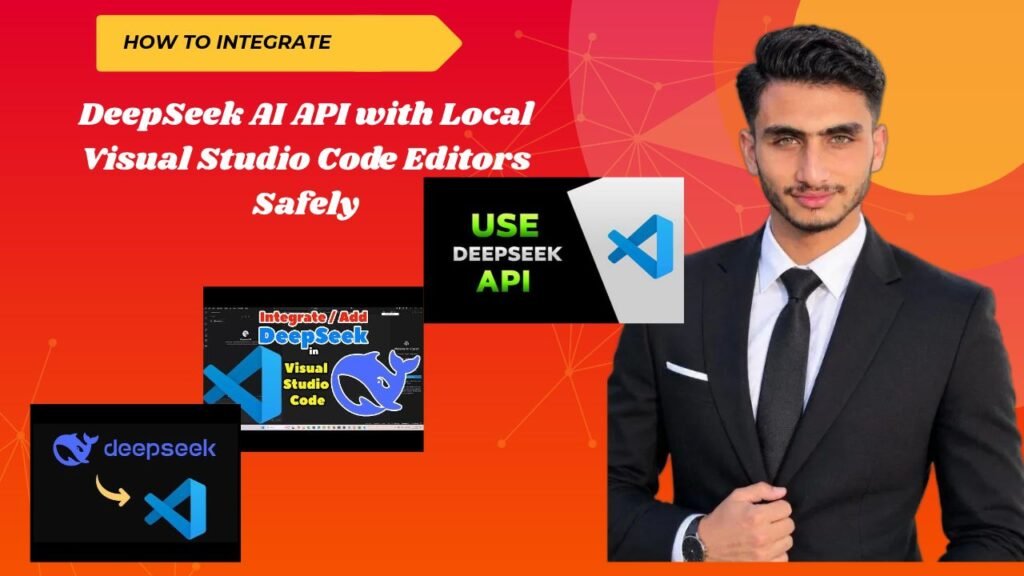
Look brother if you are a software developer or freelance programmer you know how much coding assistants have become a part of our workflow these days. When we work in a local development environment privacy and security are the biggest issues. If you also want smart coding power on your favorite editor without leaking your sensitive code then this article is for you. In this guide we’ll explain in detail how to integrate DeepSeek AI API with local Visual Studio Code editors safely .
In fact DeepSeek is powerful models—such as DeepSeek-V4 Pro and Flash—have created a stir in the developer community.Connecting them to Visual Studio Code on your local machine is very easy, you just need to know the right extensions and secure credential management.
So there is absolutely no need to worry In this article we’ll walk you through a step-by-step process including complete security practices to ensure your API key remains secure and your code does not leak. Let’s get started!
How DeepSeek AI API Integration Works Securely
Simply put when you integrate the DeepSeek API into VS Code you are creating a bridge between your local workspace and DeepSeek is cloud servers. Extensions (like Roo Code or GitHub Copilot extensions) process prompts within your editor and send them to an API endpoint.
Look brother security is the most critical factor here. If you hardcode your API key directly into your code files the key could leak as soon as it is pushed to public repositories. Therefore secure integration means that your API key is always stored in the OS keychain or encrypted local configuration.
Token Management and Data Privacy Protocols
Most importantly DeepSeek’s API runs on open-source compatible formats. This means that you can also plug-in DeepSeek as a backend model using OpenAI or Anthropic-compatible extensions.
Otherwise for enterprise-level security it is essential to ensure your codebase is not trained on servers with weak privacy policies. To understand this in depth you can DeepSeek Official API Docs You can also read their data handling guidelines by visiting their website.
Real-World Impact on Development Velocity
As a professional developer when you use DeepSeek in your local IDE code completions and bug fixing speed up to 3x.
-
For one you do not have to switch between the ChatGPT or web interface on your browser again and again.
-
Secondly your entire project context is managed through the local extension is required secure tokens.
Therefore following a safe integration method is crucial for both your coding productivity and data security. The next thing we’ll look at is its exact step-by-step implementation process.
How to Integrate DeepSeek AI API with Local Visual Studio Code Editors Safely
Now let’s get down to business. If you want to securely set up the DeepSeek API in your Visual Studio Code editor you’ll need to follow a few simple steps.
Look brother here we will use Roo Code or compatible extensions which safely store credentials on the local machine. Follow the steps given below carefully:
Install Visual Studio Code and Extension
First of all official on your system VS Code Portal Install this editor if you have not already.
-
After opening VS Code go to the Extensions marketplace ( Ctrl+Shift+X ).
-
Type Roo Code or any trusted AI assistant extension in the search bar and click on install.
Generate Your Secure DeepSeek API Key
Now go to the official platform from your account and generate a new API key.
-
After generating the key copy it immediately because it will not be displayed again.
-
Remember never store your API key in a text file or public git repository.
Configure API Provider in VS Code Safely
After the extension is installed its icon will appear in the left sidebar (like the rocket icon of Roo Code).
-
Settings ya Model provider dropdown mein DeepSeek ko select karo.
-
Paste your copied API key there. This key is saved in encrypted form in your operating system’s secure keychain not as plain text on disk.
Verify and Test Coding Assistant
Most importantly—run a small test prompt to check if the connection is secure.
-
Open the chat panel and ask to write a basic function.
-
If the model is instantly returning the correct response your local editor is now fully securely integrated with the DeepSeek API. You can also view your old related articles. Internal Dev Workflow Hub You can also check it here. That’s it your setup is ready!
Top Industry Alternatives for AI Coding Assistants
Look brother if you feel that there should be some more powerful options apart from DeepSeek that can integrate smoothly with the local VS Code editor then there are many other powerful tools available in the market.
In fact there are many AI assistants in the developer ecosystem these days that focus on a privacy-first approach and local code indexing so that your code remains completely secure.
This simply means that if you need the flexibility to switch between different model providers (such as OpenAI, Anthropic or local Ollama models) you can try other options. Below are some of the best alternatives:
-
GitHub Copilot: This is the industry is oldest and most reliable AI pair programmer that comes with inline completions and chat features. You can find details about it here.GitHub Copilot Portal But you can go and see.
-
Continue.dev: This is a very popular open-source AI code assistant that gives the freedom to connect local models (like Llama 3 via Ollama) or custom APIs completely within VS Code.
-
Tabnine: If you need enterprise-grade security and local code privacy that won’t trap your data Tabnine is a solid choice.
Pros Or Cons Breakdown
Simply put integrating the DeepSeek API into VS Code or using pre-built assistants (like GitHub Copilot)—both have their own advantages and disadvantages.
In the table below you can see what benefits each type provides:
Pros of Integrating DeepSeek API Locally
-
You get state-of-the-art LLM intelligence at a very low cost.
-
You can customize the entire coding environment through your desired extensions.
Cons of Integrating DeepSeek API Locally
-
If the API key expires or the account balance is exhausted the assistant suddenly stops working.
-
Some technical knowledge is required for initial setup.
Frequently Asked Questions
Is it safe to save the DeepSeek API key in VS Code?
Yes, absolutely! When you enter the API key required by Roo Code or compatible extensions it is not saved in plain text but is stored encrypted in your operating system’s secure keychainor credential manager.
Does my local source code train on DeepSeek’s servers?
Most importantly if you use DeepSeek’s standard API their privacy policy states that commercial API data is not used for model training. However for sensitive enterprise projects it is important to read their official terms.
Can I use DeepSeek in local VS Code without an internet connection?
No! DeepSeek is a cloud-based API so an internet connection is required for code completion and chat prompts. If you need to code offline you can try local models with Ollama.
Does this integration work on all operating systems (Windows Mac Linux)?
Absolutely! Visual Studio Code is a cross-platform editor and its extensions work the same way on Windows macOS and Linux.
Final Think
Look in modern development having an AI assistant is no longer a luxury but a necessity. By following the How to Integrate DeepSeek AI API with Local Visual Studio Code Editors Safely process you can double your coding speed without compromising your data security.
What are you waiting for? Go ahead and start coding smarter by integrating secure APIs into your VS Code! If you found this article helpful be sure to share it with your developer friends so their coding workflows can be secure and fast too. Happy coding!
-