








Let’s Get Started:
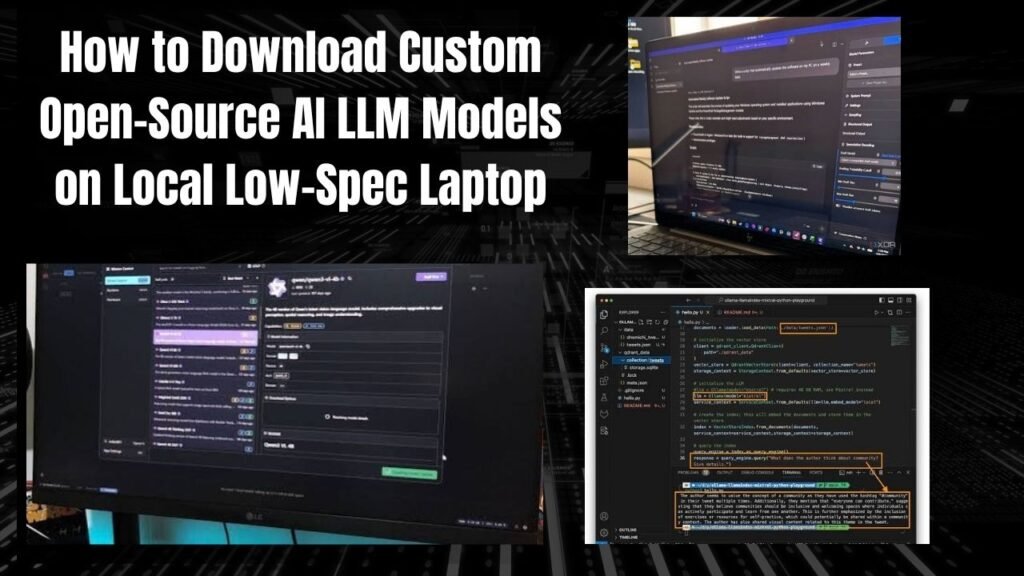
Look bro nowadays everyone wants to keep their personal data secure and be able to run open source AI models on their own computer without a cloud subscription. But the problem arises when you have an old or low-specification laptop—one with 8GB or 16GB of RAM and no high-end dedicated graphics card (GPU).People often think it is impossible to download custom AI models onto their devices. In reality if you have the right tools and an understanding of lightweight models you can easily execute How to Download Custom Open-Source AI LLM Models on Local Low-Spec Laptops .
This simply means you don’t need to rely on OpenAI or the cloud. You can build a local AI powerhouse by running small, highly optimized Open-Weights models even on your budget-friendly laptop. Let’s take a look at how this whole mechanism works behind-the-scenes.
Decoding the Real-World Mechanism of Running LLMs on Limited Hardware
When it comes to running an AI model on a local low-spec laptop the biggest bottleneck is RAM and VRAM. Large Language Models (LLMs) require the entire model file to be loaded into the computer is active memory to run. If your laptop does not have a dedicated GPU your CPU and system RAM together handle the inference.
Well the modern open-source community has created lightweight architectures for low-end hardware users that deliver smooth performance even without a heavy graphics card. When you download a custom model it is in compressed formats that your laptop is processor can easily process.
-
CPU Offloading: If VRAM is low or zero then system RAM takes over the entire load.
-
Lightweight Weights: Models with parameters from 1B to 4B are best for low-spec machines.
-
Zero Cloud Dependency: All your data is processed on your local machine which provides 100% privacy.
You can read more technical details of open-source model optimization. Hugging Face Documentation You can explore the guide by visiting.
The Technical Role of Quantization and Model Sizes
The next thing to understand is quantization . When original AI models are trained they can be 50GB to 100GB in size which is impossible to run on a normal laptop. Quantization is a technique that converts the model is weights from 16-bit precision to 4-bit or 8-bit precision.
This results in a model size reduction of up to 70%, without any significant difference in quality. For low-spec laptops Q4_K_M or Q8 quantization formats are considered best.
-
Model Sizing Rule: For laptops with 8GB RAM always choose models with 3B or 4B parameters (like Gemma 3n or Llama 3.2 3B).
-
Token Speed: Tokens-per-second is a bit slow on CPU-only machines but it works perfectly for casual tasks and coding assistance.
How to Download Custom Open-Source AI LLM Models on Local Low-Spec Laptop
Look if you want to download and run a custom version on your low-spec laptop the easiest and fastest way is to use Ollama or LM Studio. Follow the 4 steps below:
Lightweight Local Runner Install
First of all on my laptop Ollama Official Website Go to and download and install the installer for Windows Mac or Linux. It runs a lightweight server in the background that manages the models.
Low-Spec Friendly Model Chunein
Go to Your Terminal or command prompt. If you have a laptop with 8GB of RAM Select a smaller model that runs smoothly On Lower specs. For example: Ollama run llama3.2orollama run gemma3:e4b
Download The model and pull it down.
As soon as you enter the command Ollama will automatically begin downloading the quantized model file from the internet. Because these models are optimized they only range in size from 2GB to 4GB so they download quickly even on slow internet.
Start Chat on Local Terminal or UI
Once the download is complete an interactive prompt will open directly on the terminal ( Send a message). You can enter any code snippet text query or translation prompt here and enjoy the local AI without internet.
local runners and alternatives
Let’s see which local runners and alternatives are the best for low-spec laptops:
| Local Tool / Software | RAM Footprint | Beginner Friendly? | Best For Low-Spec Laptops |
| Ollama (CLI) | Very Low (~500MB) | Yes | Command-line lovers & quick scripts |
| LM Studio (GUI) | Moderate (1-2GB) | Very High | Visual chat interface & GGUF browsing |
| Jan.ai | Low-Moderate | High | Privacy-focused desktop app users |
Advantages and Disadvantages breakdown
-
Advantages:
-
Completely Offline and Secure (No Data leak).
-
Free-of-Cost no subscription Fee is Required.
-
Old laptops can also be Used for AI development.
-
-
Disadvantages:
-
The generation speed is a bit slow on CPU-only laptops.
-
Large 70B+ Models may not Run at all on low-spec hardware.
-
Frequently asked Questions
Can The Llama Or Gemma model Run on an older laptop with 8GB of RAM?
Yes absolutely! If you select lightweight Models with 3B or 4B Parameters (like the Llama 3.2 3B or Gemma efficient variants) They run smoothly without any crashes even On laptops with 8GB of RAM.
Is an Internet connection Required to run local AI models?
Once you download (pull) the model to your laptop via Ollama or LM Studio you do not need internet anymore. You can even chat with the AI completely offline.
Where is the model file saved after downloading Ollama?
Ollama by default stores all downloaded model weights in your computer is local user directory from where they are mapped directly into memory.
If the laptop does not have a GPU will the AI run slow?
If you do not have a Dedicated Graphics card all Processing happens on the CPU and RAM. This reduces the tokens-On-second slightly (e.g. 5 to 15 tokens On second) which is a fairly Acceptable speed For normal Chat and coding.
What is The best low-spec Open-source Model that Will be most used in 2026?
Currently the Qwen Coder Series and Smaller variants of Gemma are community favorites for coding and text generation on Low-spec machines because they offer tremendous reasoning even at small sizes.
Last tip: The Most important thing is that hardware limitation never stops your learning, you just have to choose the right model size according to your device.
Advanced Performance Tweaking for CPU-Bound LLM Inference
Look when you run local AI on a low-spec laptop the load on the CPU becomes quite high. If you want to improve the generation speed a bit and keep your laptop from overheating you should apply some advanced configuration settings. When using Ollama or llama.cpp you can set a thread limit so that your CPU does not freeze completely.
In fact if Your laptop has 4 or 8 CPU Cores Instead of Allocating all the cores to AI you Should leave some for The Operating system. This Makes multitasking Smoother and eliminates System crashes.
Setting Environment Variables for Low-Spec Machines
You can optimize memory allocation by setting specific environment variables in your terminal:
OLLAMA_NUM_PARALLEL: This allows you to maintain a single-threaded focus by limiting concurrent requests.
OLLAMA_MAX_LOADED_MODELS: Keep only one model active at a time to avoid RAM clutter.
Lightweight GUI Clients and Frontends
If you do not like using the command-line interface (CLI) there are some lightweight graphical interfaces available that provide a beautiful chat experience with local models without heavy overhead.
Open WebUI: This runs through Docker and provides a ChatGPT-like web UI on the local machine. However it may be a bit heavy for low-spec laptops.
AnythingLLM: This is a privacy-first desktop application that allows you to perform RAG (Retrieval-Augmented Generation) by indexing your local documents (PDFs text files) along with local models.
What this simply means is that with the help of lightweight frontends you can enjoy your local AI like a professional app without any coding knowledge.
Final Think
Most importantly downloading and running custom open-source AI models on a low-spec laptop is no longer rocket science. With accurate quantization formats lightweight runners like Ollama and smart model selection any developer or tech enthusiast can set up local AI while protecting their privacy.
Pro Tip: Always pay attention to your laptop is thermal state. If the laptop is getting too hot take a break to prevent generation speed from dropping due to CPU throttling.
Final Tip: Learning local AI models instead of spending money on cloud subscriptions makes you a true technical creator with complete control over your own hardware.
Well done I hope You enjoyed this comprehensive guide! If You have any Questions please Feel free to ask.