



Introduction:
Look if you generate stunning AI art on Midjourney and then s\end it for physical poster or t-shirt printing you suddenly find it completely blurred and pixelated. In fact an image that looks great on a digital screen at 1024×1024 pixels gets shrunk or its pixels get blurred when printed at 300 DPI (Dots Per Inch).
When you think about How to Use Free Local AI Upscalers to Fix Pixelated Midjourney Art Prints you might think you’ll need some expensive software or a cloud subscription. But the truth is you can create professional-grade prints by running free open-source local AI upscalers on your own computer without any monthly fees!
In this article we’ll explain in detail how these local upscalers work and how you can set them up in your workflow without spending a single rupee so that your art prints always remain sharp and crystal clear.
Local AI Upscaling and Real-World Mechanism
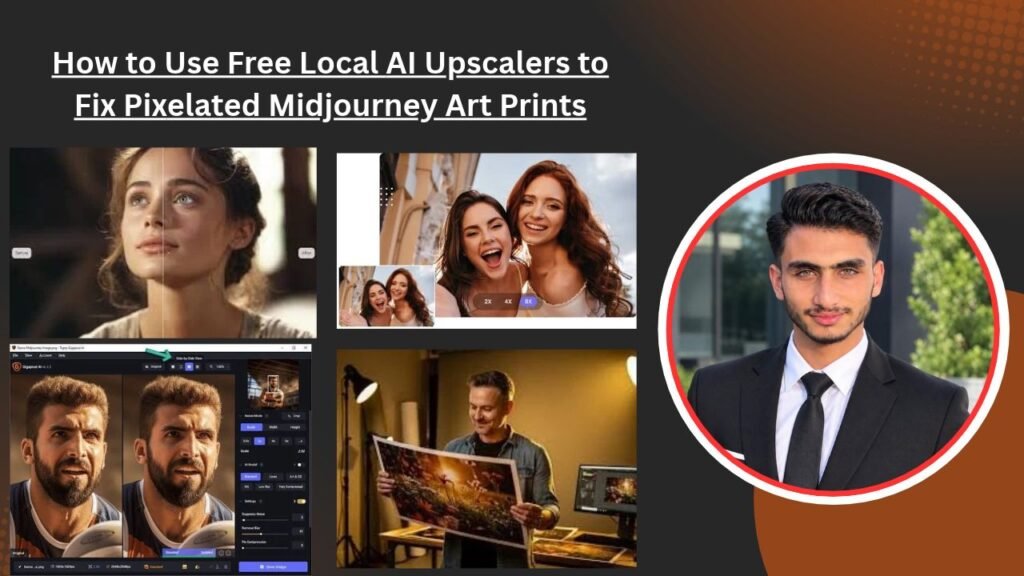
This simply means that traditional resizing methods (like Photoshop’s bicubic interpolation) can not remove blur by stretching pixels but instead create blurry edges. On the other hand AI upscalers use machine learning models (like Real-ESRGAN or SwinIR) to mathematically predict and recreate missing textures lines and fine details.
The thing is when you use cloud-based tools they are either paid or restrict you to low-resolution outputs and privacy concerns are also a concern. In contrast local AI upscalers perform all the processing on your computer harnessing the power of your GPU (graphics card). This not only keeps the data secure but also allows you to scale unlimited images up to 4x or 8x without any restrictions.
How Do These Local AI Upscalers Work?
-
Neural Network Weights: These tools use pre-trained models (like UltraSharp or DAT) that are trained on millions of high-res images.
-
Tile Processing: If your GPU is a little weak then these upscalers process the image by dividing it into small tiles so that VRAM does not crash.
-
Face Restoration Integration: Some models are integrated with CodeFormer or GPGAN which makes faces look natural and sharp without giving a plastic look.
For more technical insights on this you can Real-ESRGAN Official GitHub Repository You can check it out. The next thing we’ll look at is its step-by-step implementation guide.
How to Setup and Use Free Local AI Upscalers
Look if you want to convert your mid-journey prints into high-res masterpieces without paying a dime the best and most user-friendly tool we’ll recommend is Upscale. It is a 100% free open-source native AI upscaler that runs on Windows Mac and Linux. Here is the exact process you can follow right now:
Download Software and Check Hardware
First of all you will have to download the software from the official portal.
-
Go to your browser and Upscayl Free Download Portal Download the installer according to your OS.
-
Ensure Your system has a dedicated GPU (NVIDIA or AMD) As local AI processing can be quite slow on the CPU.
-
Our Internal Design Assets & Branding Workflow Check if The print Dimensions are Correct by matching these upscaled images with the original.
Import Image and Select Model
After opening the software you will need to make some simple settings:
-
Drag and drop your pixelated Midjourney image.
-
Select Real-ESRGAN x4+ or UltraSharp from the Model list . The UltraSharp model is best for artistic designs and midjourney prints because it retains fine textures very well.
Set the Scale Factor and hit Upscale
-
Set the Scale factor to 4x . If Your original image is 1024×1024 after 4xing it will be a straight 4096×4096 pixels which is plenty for any large poster print.
-
Avoid the DOUBLE UPSCALE toggle unless you need a very large print otherwise processing time will double.
Verify the Final Output and Send it for Print
-
After the process is complete check the image in the output folder. You’ll see a dramatic difference in edges hair details and textures.
-
You can then send your prints to a local print shop without the fear of them getting smudged or blurred.
Top Free Local vs Cloud AI Upscaling Tools
There are many upscalers available on the market but when it comes to free and local execution only a few specific tools offer the best performance. We compare them in the table below:
Pros and Cons of Running Local AI Upscalers on Your PC
Using local tools has its own advantages and disadvantages. Let’s see how beneficial they are for your workflow:
Advantages:
-
No Subscription Fees: ‘Once you install the software you can upscale as many images as you want without paying a single rupee’.
-
Complete Data Privacy: Your confidential or client art files never leave your computer or go to the cloud.
-
Batch Processing: You can queue up 50-100 images at once which get automatically upscaled in the background.
Disadvantages:
-
Hardware Dependent: If you have an older laptop or a weak graphics card it can take several minutes to upscale an image.
-
Storage Space: AI models are large in size so it is important to have a few GBs of extra storage on the computer.
Frequently Asked Questions (FAQs)
Do free local AI upscalers give as good results as paid tools?
Yes! Today’s open-source models like Real-ESRGAN and UltraSharp give paid tools (like Topaz) a run for their money. If you select the right model there won’t be much difference in print quality.
How Much VRAM (‘Graphics Card Memory’) is Required to Run Upscale?
”A dedicated GPU (NVIDIA GTX 1060 Or higher) with at least 4GB of VRAM will significantly speed up processing”. Integrated Graphics will Be much Slower.
Which Model is best for Midjourney v6 images?
For photorealistic and artistic Details UltraSharp or Real-ESRGAN x4+ Provide the best results on Midjourney v6 because They enhance texture noise rather Than Smooth it out.
Can I use upscaled images from local upscalers for commercial prints?
Absolutely! Since these open-source software run on the local machine and have no copyright restrictions you can use them for commercial posters t-shirts and canvas prints without any tension.
If I don’t have a GPU can I use a local upscaler?
You can also run it in CPU mode but keep in mind that a single image can take 5 to 15 minutes to process which will be quite slow for bulk work.
Most importantly making digital art print-ready is no longer a difficult task you just need to have the right local tools and understanding of the model.
Download Upscale on your computer and test print one of your favorite Midjourney images by upscaling it 4x!