











Intro:
Look brother when we leave for office or college in the morning Google Maps makes our journey easy. But do you know that in the background this app is tracing your every move? If you are serious about your privacy and want to know How to Stop Google Maps from Storing Your Exact Daily Traveled Location then this guide is just for you. Basically Google is Timeline (earlier known as Location History ) saves your entire day’s log – where you went how long you stayed and which route you took. Controlling it has become very important in today’s time so that your personal data remains safe.
Why Google Maps Keeps a Record of Your Exact Daily Traveled Location
So the thing is Google Maps is not just a navigation tool it is also a massive data-collection engine. When you keep your phone’s location on Google syncs your every movement to a cloud database. Its purpose is to provide you with personalized recommendations and targeted ads.
Most importantly this data was previously stored in the cloud which increased security risks. Although Google has now shifted the Timeline feature from the cloud to storing it directly on your device, if it is active your phone still stores your exact daily traveled location. You can learn more about this by visiting Google’s official website .Google Privacy Policy & Terms You can also read this.
You can read our old guide on this topic. Complete Guide to Smartphone Location Tracking & Privacy You can also read this by linking to where we have explained the methods to block background telemetry.
How to Execute Complete Location Tracking Shutdown in Maps
If you want to Completely Stop Location Saving on your phone here is a Clear 3-4 step Path You can follow to Lock Your History:
-
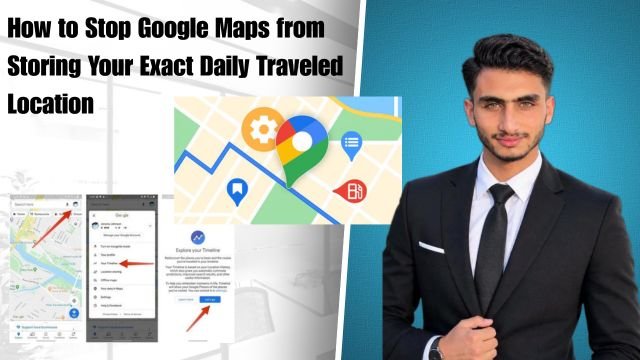
Open Google Maps Profile Settings Open the Google Maps App on your phone and Tap your profile icon in the top-right Corner. from there select the Your Timeline Option.
-
Access Location Settings and Timeline Controls Tap the settings icon (gear icon) within the Timeline Menu. Here you’ll See the Location History toggle. If it is On turn it off .
-
Switch to Device-Only Storage (or Disable) Google now gives users the option to store Timeline directly on the device or turn it off completely. Disable this as per your requirement so that no exact daily traveled location is saved to the cloud.
-
Set Up Auto-Delete Preferences If you don’t want to completely close the history you can set an auto-delete timer (like 3 months or 18 months) so that old data gets deleted automatically.
Otherwise if you occasionally need location for navigation you can go to your phone’s main settings and set the Maps app’s location permission to Allow only while using the app.You can also use our Android & iOS Location Permission Guide You can also check it.
Managing Device-Level GPS Permissions and History Auto-Delete Settings
The Next thing to Keep in mind is the phone’s Operating system-level controls. Simply changing the settings within the Maps app is not enough. You’ll need to go to Your phone’s Settings > Apps > Google Maps > Permissions and Ensure that Location access is not always Open in the background.
Simply put unless you allow background location access Maps will continue to secretly collect location points. By tweaking these little settings you can keep your daily routes completely private.
Look brother if you want some navigation tools other than Google Maps that work on a privacy-first approach and do not store your data then there are some great alternatives available in the market.
You can explore these options:
-
Apple Maps (with Privacy Focus): Apple Maps on iOS devices routes user locations through anonymous servers and does not link exact daily travel history with any user account.
-
Here WeGo: This is an offline-friendly navigation app that minimizes user tracking and telemetry so you can travel smoothly without logging into an account.
-
OpenStreetMap / OsmAnd: This is a completely open-source and community-driven map alternative that works on a zero data collection policy meaning none of your routes or locations are saved.
Benefit Breakdown
This table gives you an idea of the Differences Between Google Maps (Default) Google Maps (Timeline Off) and Privacy-First Maps when it comes to Location tracking:
| Feature / Control | Google Maps (Default History ON) | Google Maps (Timeline Disabled) | Privacy-First Alternatives (e.g., OsmAnd) |
| Location Data Stored | Saved Continuously (Cloud & Device) | Stored only during active navigation | Not stored anywhere permanently |
| Targeted Ads & Promos | Highly customized based on routes | Reduced Based on general region | Zero ads or location-based Tracking |
| Battery & Data Usage | Moderate to High (due to sync) | Low (background tracking blocked) | Minimal (local map rendering) |
| Setup Complexity | None (enabled out of the box) | Easy (takes 1 minute in profile) | Easy to Moderate (downloading offline packs) |
Advantages and Disadvantages of Breakdown
-
Advantages
-
Disabling Timeline Makes your daily travel route Completely private.
-
Your past location history stops being saved on Google Cloud.
-
Stopping background telemetry also saves phone Battery.
-
-
Disadvantages
-
You will not be able to see the timeline or Memories of your past visited places on Google Maps.
-
Local Recommendations and Travel insights Become a little Less personalized.
-
Frequently Asked Questions
Does turning off Timeline in Google Maps immediately delete my old travel data? Actually turning off Timeline prevents future tracking. However you I will need to manually delete old data saved in Timeline settings or set an auto-delete timer.
Will Google Maps navigation still work properly after turning off location history?
In simple words absolutely! GPS and real-time route directions are not affected for navigation. You can easily navigate anywhere without saving history.
Does turning off your phone’s GPS settings stop Maps tracking?
Otherwise if you turn off GPS location for the entire phone Maps won not work at all. Therefore the best way is to simply disable the Timeline and Location History settings within the Google Maps app.
Is incognito mode also available in Google Maps?
Yes Google Maps also has incognito mode. When you turn it on your search history and navigation history are not saved after that session.
Is Google Maps tracking controlled the same way on both iPhone and Android?
Yes the steps are almost the same—you just have to tap your profile icon and go to Timeline settings whether you are using Android or iOS.
Final Think
Most importantly your daily travel route and exact locations should be under your control not on some tech giant’s servers. It is wise to secure your app settings now to avoid being secretly tracked.
Look brother go to your Google Maps profile today turn off Timeline and location history and take complete control of your privacy yourself!