










Let’s Get Started
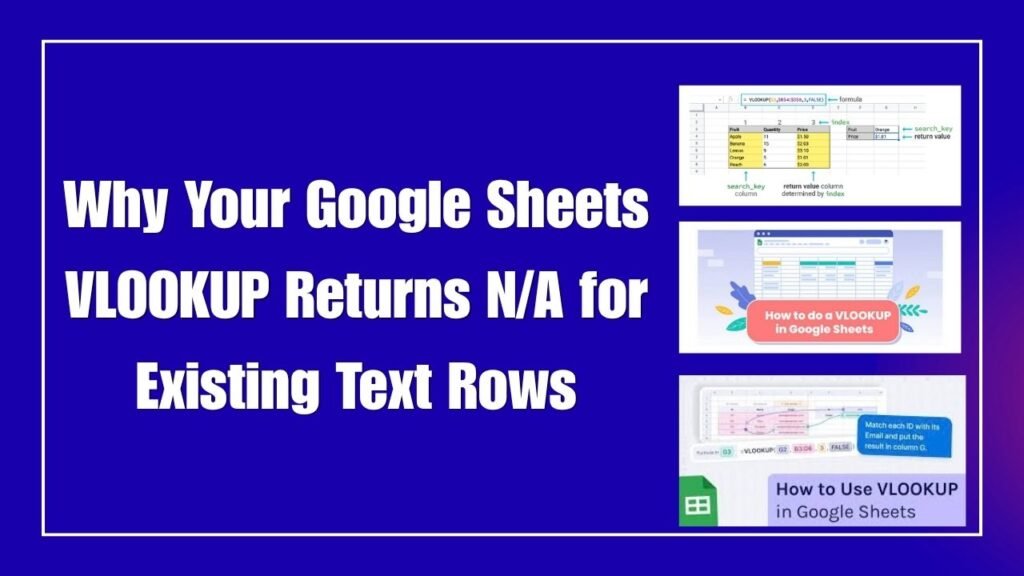
Look when you are matching a large data set in Google Sheets and you know the exact text is in the table the formula still #N/Athrows an error. This is a frustrating situation that baffles every office user or data analyst. If you’re facing this problem and want to understand why your Google Sheets VLOOKUP returns N/A for Existing Text Rows you are come to the right place.
In reality this error is not caused by a major bug but rather by minor formatting issues like hidden trailing spaces mismatched data types or missing exact match settings. The Bottom line is That if you know how to clean up the data on the backend you can fix this Error in Seconds. In this in depth guide we will Explain step-by-step why this Problem Occurs and how to resolve it.
Why Your Google Sheets VLOOKUP Returns N/A for Existing Text Rows Mechanism
This Simply means that Google Sheets VLOOKUP function is very strict when it comes to text comparisons. If there is Even a tiny extra invisible space between your lookup value and the source table cell or if the Text is in a Different Case Google Sheets Considers it a Mismatch and #N/AReturns it.
Otherwise if you don not understand the Underlying data formatting you will end up changing formulas but the error Won not go away. In the Real world there are a Few key technical factors behind this issue:
-
Hidden Leading or Trailing Spaces:
appleIf there is an invisible space ( vs ) Hidden before or After the textapplethen VLOOKUP fails. -
Exact Match Parameter Missing:
FALSEIf or0is not passed in the last argument of the formula then an error occurs due to the Approximate match not being found. -
Number Stored as Text Issues: If one table contains number formatted text and the other contains standard number then it does not Match.
You can read more about this in the technical function documentation Google Docs Editors Help Portal where VLOOKUP syntax and error codes are explained. Additionally you can use the Data Cleanup tool to clean up your sheet. Google Sheets Data Formatting Guide You can also check which improves formula accuracy.
How to Fix Why Your Google Sheets VLOOKUP Returns N/A for Existing Text Rows Instantly
Look brother if #N/A errors are ruining your reports try applying the steps given below to clean your text rows and get your VLOOKUP working perfectly.
Invisible spaces fail text matching the most.
-
Create a New helper column in Your source data and Use the formula:
=TRIM(A2). This instantly removes all extra spaces. You can check out more functions at the Google Sheets Function List. -
Verification: Copy-paste the values from the cleaned data to your main sheet and check whether the VLOOKUP matches or not.
Ensure Exact Match Parameter is Set to FALSE
Approximate matching also Causes text Rows to be skipped.
-
Check The syntax of your formula and ensure that the Last argument is set to
0or (e.g. ).FALSE=VLOOKUP(D2, A:B, 2, FALSE) -
Verification: After Updating the formula Press Enter if the exact text matches the error will disappear immediately.
Check For Case Sensitivity or Special Characters
Special characters and Formatting discrepancies break text matching.
-
Verify the font formatting of the search cell and Table range to ensure that no non-breaking space (
CHAR(160)) is embedded. -
Verification:
Ctrl + HClean up Extra spaces or invisible characters Globally using Find and Replace ( ).
Lookup Approaches
Look brother suppose you are Applied the TRIM function and Checked for an exact match but VLOOKUP still
#N/Areturns an error. In such a case you can use some alternative and powerful lookup formulas:-
Using INDEX and MATCH Combination: The Biggest limitation of VLOOKUP is that it can Only perform left-to-Right searches. If you need to fetch data From the right to the left or perform rigid Lookups
=INDEX(B:B MATCH(D2 A:A 0))Using INDEX is more reliable. You Can read more Technical details about this. Google Docs Editors Help Portal where Advanced lookup functions are explained. -
Using the XLOOKUP Function: Google Sheets Now
XLOOKUPhas native Support for the XLOOKUP function Making it the best alternative to VLOOKUP. It matches data in any direction not just Left-to-Right and Defaults to an exact match without any additional arguments.
Lookup Methods vs. Error Handling Efficiency
This table helps you understand how effective different lookup methods are in terms of error handling:
Lookup Method Direction Support Hidden Space Sensitivity Ease of Use Standard VLOOKUP Left to Right Only High (Fails on extra spaces) Easy for Beginners INDEX & MATCH Any Direction (Bi-directional) High (Requires clean text) Moderate XLOOKUP Any Direction (Bi-directional) High (Unless combined with TRIM) Very Easy QUERY Function Advanced SQL-like Low (Flexible filtering) Advanced Advantages and Disadvantages of Troubleshooting Spreadsheet Lookup Errors Systematically
In fact formatting data and debugging functions properly has its advantages and disadvantages:
Advantages (Benefits):
-
Accurate Data Reporting: All dynamic dashboards and financial reports are perfectly calculated without any broken references.
-
Clean Database Management: Developing Data Cleaning habits reduces the chances of errors Appearing in future reports.
Disadvantages:
-
Time-Consuming Audit: If the Data set is very large (thousands of rows) Then finding invisible spaces and formatting issues Can be a bit tedious.
-
Formula Complexity: Using Advanced lookups requires the Team to Have deep knowledge Of Formulas.
Frequently asked questions
is Vlookup case sensitive (does Uppercase/Lowercase matter)?
In simple Words absolutely not! Standard VLOOKUP is Case-insensitive meaning if you search for Apple with apple it will match. If you need a strict case-sensitive match You will
EXACTneed to use a Function.Does VLOOKUP give an error if the data Contains a mix of numbers and text?
Otherwise if the lookup value is in number format and the same number in the source table is Stored in text format (like the cell with the green triangle) VLOOKUP
#N/Awill throw an error. Both Data types must be the Same.Can partial text be matched using wildcard characters ( )?
Yes if you do not remember the Exact text or Need to do a partial match you can use Wildcards in VLOOKUP (Like
=VLOOKUP("A*p" A:B 2 FALSE)).What
ARRAYFORMULACauses #N/A Errors when VLOOKUP is used with?Yes if a formula is applied to an entire column at once and there are blank cells or unmatched rows in between,
#N/Athe error can Spread to the entire sheet. To Avoid this youIFERROR(VLOOKUP(...), "")can wrap.Is The behavior of VLOOKUP Different in Google Sheets and Excel?
No the Syntax and Core working is exactly the same except Google Sheets offers cloud-based real-time processing while Excel Relies on local desktop resources.
The most important thing is to always remove extra spaces from your data before writing the formula to avoid recurring errors!
-