








Let’s Get Started:
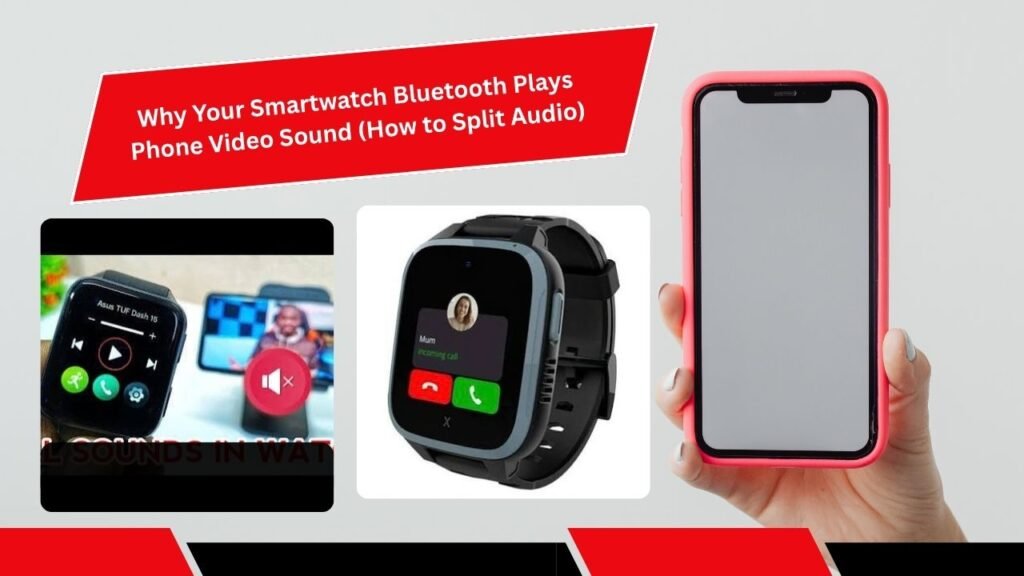
Look sometimes a strange thing happens. You are watching a fun YouTube video or Instagram reel on your phone but instead of coming from your phone is speakers or earphones the sound seems to be coming from the small smartwatch on your wrist! If this is happening to you too and you are searching the internet in a perplexed state for Why Your Smartwatch Bluetooth Plays Phone Video Sound (How to Split Audio)? then you are come to the right place. Actually this is not a major technical problem but a minor glitch in your phone is Bluetooth audio routing that gets resolved quickly with a few simple settings tweaks.
Why does phone audio play on a smartwatch?
In Simple words When you pair Your Smartwatch With Your phone the Phone treats it not only as a fitness Tracker but Also as a Bluetooth speaker or Hands-free Device. Both Android and iOS have a feature that Automatically routes media audio and call audio to the connected Bluetooth accessory.
Otherwise when you use a calling app or voice feature the profile switches and the media audio also shifts to the watch is tiny speaker. This simply means that the watch is speaker is fine for calling but when playing Reels or movies it goes out of its range causing the sound to become distorted. It is important to understand this so you know that the problem is not with the watch but with the phone is audio output settings.
Easy Ways to Split and Fix Audio
If you want the video sound to play only on your phone Or earphones and Use your smartwatch only for notifications Here is a Practical way to Split the audio Properly:
Check Bluetooth Device Settings: Go to Your phone is Bluetooth settings. Click the gear icon or settings button Next to your Connected smartwatch.
Disable Media Audio / Calls Toggle: There you Will get options for Media Audio Call Audio or Input/Output Device. If you do not want video sound on your watch immediately turn off the Media Audio toggle and leave only Call Audio or Contact Sharing on. Android Bluetooth Audio Settings Guide.
Change In-Call / In-App Output Source: When you are playing a video or media press the phone is volume keys and tap on the media output prompt to select the phone speaker or Bluetooth earphone.
Reset Network Settings: If the audio is still switching to the smartwatch clear the Bluetooth cache of the phone or unpair the devices once and pair them fresh again. Outbound Link Placeholder: Official Android Connectivity Troubleshooting.
Bluetooth Management Apps
Look if your phone is default settings don’t offer the option to completely save media audio from your smartwatch there is no need to worry. There are some smart alternatives and tools available on the market that can help you better control your Bluetooth audio routing. Best Bluetooth Manager Apps for Android
You can explore these alternative options:
-
Bluetooth Audio Manager Apps: There are some lightweight apps available on Google Play Store that specifically decide which media will play on which device and which one should be blocked. Outbound Link Placeholder: Android Bluetooth Developer Guidelines
-
Dedicated Companion Apps (Da Fit Zepp or FitPro): Often there is a Call Audio or Media Sync toggle within these apps in the device settings or notification permissions that you can turn off from there as well.
Actually if the problem still persists some budget smartwatches firmware is designed to pull all audio streams to their smaller speakers. In such cases either update the watch is companion app or use good quality TWS earbuds that can prioritize audio. TWS Earbuds Connectivity Troubleshooting Guide
Advantages and Disadvantages Smartwatch Audio Routing Methods
| Connection Type | Audio Routing Behavior | Convenience Level | Recommended For |
| Full Pairing (Calls + Media) | Routes everything (Calls & Videos) to watch | Very Annoying for Media | Only if you want calls on wrist |
| Split Audio (Calls Only On Media Off) | Calls on watch Videos on Phone/Earphones | Ideal & Balanced | Daily usage & watching reels |
| Completely Unpaired / Disconnected | No sync watch acts purely like a standalone band | Low (No notifications) | Battery saving mode |
Advantages and Disadvantages Breakdown
-
Advantages
-
The original stereo sound quality of Reels and YouTube videos remains intact.
-
The battery of the smartwatch lasts very long because the speaker is not active.
-
You get relief from embarrassing moments in public when suddenly the watch starts making a sound.
-
-
Disadvantages
-
If media audio is on all the phone is ringtones and notifications start blasting on the watch.
-
The Small speaker of the Watch gets worn out or damaged quickly.
-
FAQs (People Asked Questions)
Why does the Smartwatch suddenly Start making Video sound?
Basically when you Connect the smartwatch to your phone the phone treats it as a standard Bluetooth speaker and forwards all Media audio streams there if the media audio toggle is on.
Can I block video Sound from my smartwatch on my iPhone?
Otherwise yes! Go to the iPhone is Bluetooth settings tap the ‘i’ icon next to the connected device change the Device Type from Speaker to Other or Headset or shift the audio output to the phone speaker directly from the control center.
What to do if I do not find the Media Audio option in the Bluetooth settings?
This simply means that the watch is firmware is running on the Basic profile. In this case you can manually select your phone speaker or earphone by pressing the phone is volume buttons when the media output prompt appears.
Does this problem happen with all smartwatches?
Absolutely not! This is mostly the case with budget or calling-supported smartwatches that have a built-in mic and speaker as only those support Bluetooth A2DP (Advanced Audio Distribution Profile).
Can splitting audio save smartwatch battery?
Most importantly yes! When you turn off media streaming on your watch the audio processor does not consume extra power which makes a significant difference in daily battery backup. Smartwatch Battery Drain Fixes.
Most importantly Understanding The nitty-gritty settings can make your tech experience a breeze. If you Enjoyed this Guide be sure to Share it with Your friends who are Also struggling with this Strange Problem!