









Let’s start:
Look when you open your WordPress website and suddenly another unknown spam or promotional website opens then understand that your site has been attacked by malware. This is a very dangerous situation that can ruin Google Safe Browsing and search engine rankings. If you are also worried about this critical issue and want to learn How to Remove Malware Redirect Scripts from WordPress .htaccess File Safely then you have come to the right place.
In fact hackers often take advantage of vulnerable plugins or weak passwords to .htaccessinject malicious redirect scripts into files in the WordPress root directory. So if you know .htaccessthe basic code of a clean file and how to sanitize it using a file manager you can secure your site in just minutes. In this in-depth guide we will explain step-by-step how this malware works and how to permanently remove it.
Why You Need to Know How to Remove Malware Redirect Scripts from WordPress .htaccess File Safely Mechanism
This simply means that .htaccessthe file is the configuration file of the Apache web server which controls the URLs and routing of the website. When hackers compromise this file they insert hidden Base64 encoded PHP scripts or unauthorized RewriteRules that silently forward visitors to any malicious URL.
Otherwise if you do not understand server configuration you could delete the entire file and break your website is permanent permalink structure and core routing. In the real world there are a few key technical factors behind this issue:
-
Malicious Rewrite Rules: Hackers
.htaccessset such conditions which check the user agent and redirect only normal visitors to spam sites and show a clean page to the admin. -
Vulnerable File Permissions: If loose file permissions are set on the hosting
777then any malicious script can overwrite the file through automatic execution. -
Outdated Plugins and Themes: Hackers get direct access to the server file manager through backdoors in old and unpatched plugins.
You can read more technical security guidelines about this here WordPress Official Security Documentation where file protection rules are explained. Additionally you can also use the following for your site is overall server security: Apache HTTP Server Security Guide You can also check and submit your own version which will help prevent unauthorized edits. If you are having issues with your old technical issues you can contact us. WordPress Hosting Configuration Guide You can also refer to .
How to Clean and Secure Your .htaccess File Without Breaking the Site
Look brother if a malicious redirect script has hijacked your .htaccess file try applying the steps given below to safely clean the code and lock down your permissions right away.
Access Your Website via Hosting File Manager or FTP
Before editing the file it is necessary to have direct access to the server files.
-
Log in to your hosting cPanel open File Manager
public_htmland go to your website is root directory ( ). You can check out more tips at the WordPress Support Portal. -
Verification: Ensure you
.htaccesscan see the file (if not enable Show Hidden Files in File Manager settings).
Download a Backup and Inspect the Code for Malicious Lines
The safest step is to take a backup before cleaning.
-
.htaccessRight-click on it and select Download so that if something goes wrong it can be reverted. Now open the file in edit mode. -
Verification: Default WordPress
.htaccesscode is limited to rules between# BEGIN WordPressand# END WordPress. Beyond that if you see any strange Base64 code eval functions or unknown RewriteRules it is likely malware.
Replace with Clean Default WordPress Code and Lock Permissions
Remove the malicious code and paste the standard WordPress structure.
-
Remove all extra or suspicious code from the file and keep only this standard block:
Apache
# BEGIN WordPress <IfModule mod_rewrite.c> RewriteEngine On RewriteRule .* - [E=HTTP_AUTHORIZATION:%{HTTP:Authorization}] RewriteBase / RewriteRule ^index\.Php$ - [L] RewriteCond %{REQUEST_FILENAME} !f RewriteCond %{REQUEST_FILENAME} !d RewriteRule . /index.php [L] </IfModule> # END WordPress -
Save the file and
644set its Permissions to . so That no external script can Write to it again. -
Verification: Open Your website in An incognito window to Check if the redirect is disabled. You can complete this process. WordPress Plugin Troubleshooting Guide You can also take help of redirects if linked to plugins.
Look brother suppose you are
.htaccesscleaned the file but the root file of the malware (Such as a hidden Backdoor script or Infected plugin) is still Left on the server causing it.htaccessto re-infect again and again. In such a Case you can Adopt Some alternative security Approaches:-
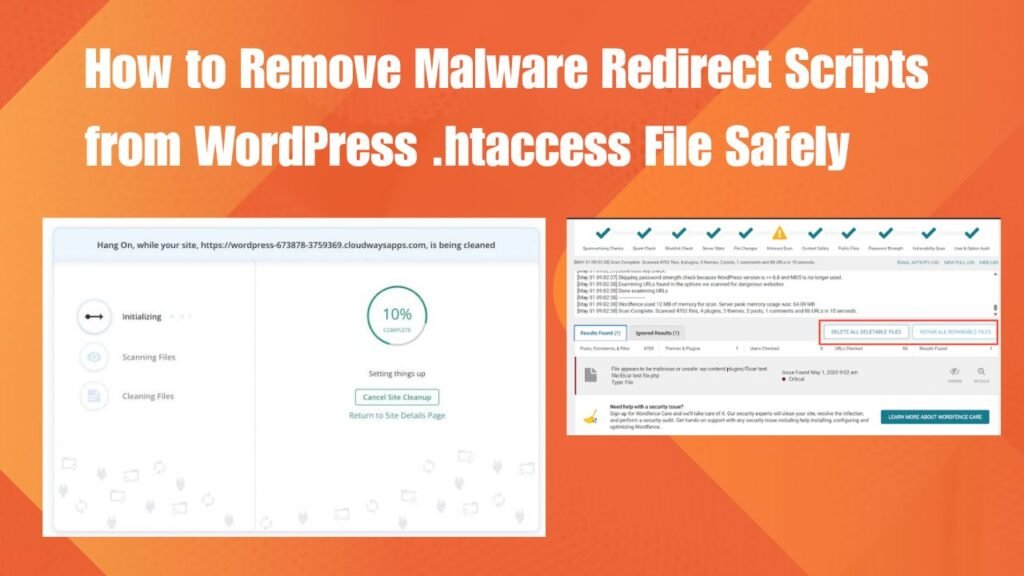
Using Dedicated Security Plugins (Wordfence / Sucuri): If You Do not want to manually check all files you can install the Wordfence Or Sucuri Security Plugin and run a deep file scan which
.htaccessdetects and automatically Quarantines Unauthorized changes to core files. You can read More details about this Here WordPress Plugin Directory trusted Security Tools Available -
Restoring Clean Files via Git or Hosting Backups: If the infection is particularly Severe and the database is corrupted restoring from your hosting provider is automated daily backup or deploying a clean Git commit is the best and fastest option. You can also use our Server-level recovery tool. WordPress Hosting Support Portal You can also check the guide.
Malware Removal Methods vs. Security Efficiency
This table gives you a clear idea of the efficiency of different malware cleanup methods:
Cleanup Method Efficiency Rate Time Required Risk Level Manual .htaccess Code Sanitization High (Immediate Fix for Redirects) 5 Minutes Low (If backup is taken) Security Plugin Deep Scan (Wordfence) Very High (Catches hidden backdoors) 15 Minutes Zero Risk Complete Hosting Backup Restoration 100% Guaranteed (Total Clean State) 10 Minutes Moderate (Can lose recent posts) Changing FTP and Database Passwords Essential Prevention Step 2 Minutes Zero Risk Advantages and Disadvantages of Cleaning .htaccess Malware Files Manually
In fact manually
.htaccesscleaning files has its advantages and disadvantages:Advantages (Benefits):
-
Instant Problem Resolution: Redirects Are stopped Immediately and Visitors can see the original site without Going to any spam page.
-
Total Control Over Code: You Get to know exactly Where and what the hacker injected.
Disadvantages:
-
Root Cause May Remain: If you just
.htaccessclean and do not remove the backdoor the malware will rewrite the file again after a few hours. -
Syntax Error Risk: If you accidentally mess up your default WordPress Rewrite rules you
404 Not Found‘ll end up with errors throughout your site. You can also try to fix these syntax errors by editing your own.WordPress Memory Limit Guide You can also refer.
Frequently Asked Questions
Is
.htaccessthe malware gone forever after cleaning the file?In simple words absolutely not!
.htaccessIt’s just a symptom the hacker mustwp-content/uploadshave hidden a backdoor shell in some other folder (like ) that repeatedly infects this file. That is why a full virus scan is necessary.What will happen if
.htaccessthe file is deleted?Otherwise if you accidentally delete the File there is no Need to worry. Simply go to Settings > Permalinks in Your WordPress Dashboard and Click Save changes. WordPress will Automatically
.htaccessGenerate a Fresh file.Why is Google showing my site as Deceptive Site Ahead?
When malware scripts redirect visitors to a malicious or phishing URL Google’s bot detects this and places a warning flag on the browser. After removing the malware you’ll need to submit a review request through Google Search Console.
.htaccessWhat should be the proper file permissions of the file?Per security standards
.htaccesspermissions for this and other core configuration files644must always be set and permissions for folders755must be set to block unauthorized writes.Can free security scanners detect malware redirects?
Yes many online scanners (like Sucuri SiteCheck) can quickly catch public-facing redirects but a local plugin scan is best for finding internal server backdoors.
The most important thing is to change all your WordPress admin FTP and hosting passwords immediately after cleaning the malware so that the hacker cannot gain access again!
Make your WordPress site malware-free and deliver a secure browsing experience to your users!
-