










Introduction:
Look if You are ever logged into your personal Google Account at a cyber cafe library or Friend’s laptop you must have felt a strange fear. In fact when we open our browser on a Public or Shared PC the question that comes to our mind first is: Why does Google Chrome keep syncing your saved login passwords on a public shared PC?
Imagine opening your Gmail or banking portal on a shared Computer at work and Google Chrome quickly dumped all your saved credentials there. The next person opened the same browser and found your password auto-filled! What a security Nightmare this is.
Well Google Chrome is designed to seamlessly sync your data to the Cloud. But when it comes to public computers, this convenience can become a major threat. In this article we will explain in detail why this happens and how to avoid it.
Is this really a Chrome Sync thing?
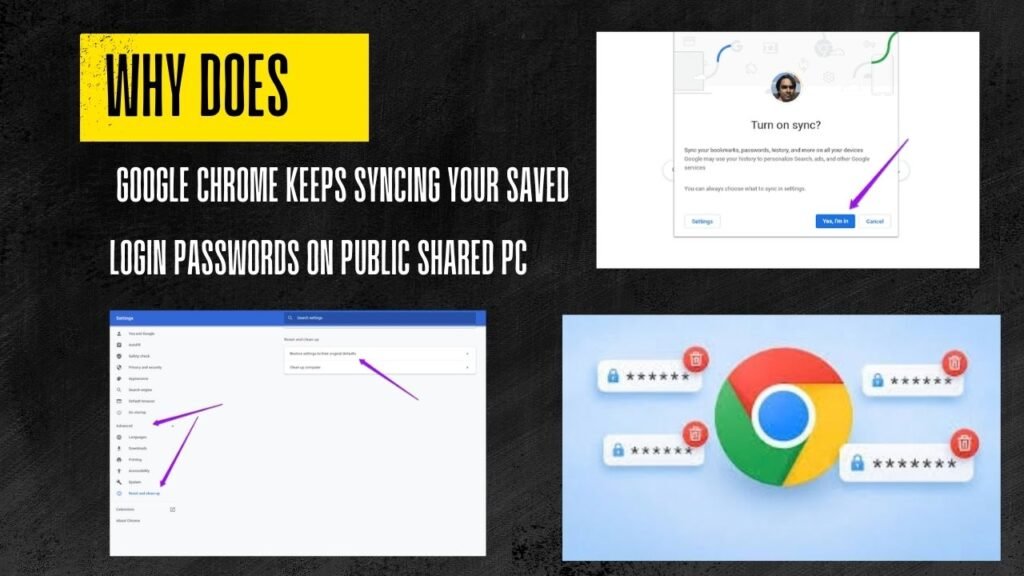
This simply means that Google’s ecosystem ties your every activity to your Google Account. When you enter your email ID and password into the Chrome browser on any computer the browser asks: Do you want to turn on sync?
Now people usually click Yes I’m in or Turn on sync in a hurry or without thinking . And that is where the whole story begins. Once sync is turned on all the passwords saved on your phone or old laptop will be downloaded to that public PC. And not only that any new passwords you save on that public PC will be directly synced with your personal account on the cloud and transferred to your home system as well!
Google’s primary goal behind this technology is to improve the user experience so you do not have to remember new passwords everywhere. However on shared hardware this feature becomes a blind spot.
You are in this regard Google Chrome Sync Official Guidelines But you can go and read more in depth about how these background processes work.
When you leave your account open on a public computer your digital identity becomes completely vulnerable. This is not just about passwords it also includes your saved credit cards autofill addresses and browsing history.
-
Risk of Identity Theft: Any unknown person can gain access to your social media or bank accounts.
-
Data Leakage: Many times on public PCs things like keyloggers or malware are active in the background which can steal your data.
-
Cloud Pollution: New login credentials created on public systems are permanently saved in your personal cloud storage which can also compromise your main account.
The next thing you need to understand is the exact steps to take to deal with this problem. Let’s see how to stop it immediately.
Fixes to Stop Chrome From Syncing Passwords
Look if you are already logged into a shared PC or want to prevent it in the future there are some specific steps you need to follow. Read them carefully and implement them immediately:
-
Sign Out Immediately: First click Chrome’s profile icon and choose Turn off sync or Sign out . This will disconnect your local browser from your Google Account.
-
Clear Browsing Data Completely: Press on the keyboard
Ctrl + Shift + Delete. A popup will appear select the Advanced tab. Select All time in the Time range check Passwords Autofill form data and Browsing history and click Clear data . -
Use Guest Mode or Incognito: From now on whenever you go to a public PC never log in to your main account. Always use Chrome’s Guest Mode or Google Chrome Privacy Overview But check how data is handled on local storage in incognito mode. All data is automatically wiped as soon as Guest mode is turned off.
Apart from this you should go to the security activity of your Google account and check whether any unknown device has gained access.
Chrome Sync Settings vs. Guest Mode
Advantages of Disadvantages Using Google Chrome on Public Computers
The most important Thing is how to Strike a balance between convenience and Security. Here is an honest Breakdown:
-
Advantages
-
It is a good Option to get immediate work done in Emergency.
-
If you need instant bookmarks or tabs you get fast access.
-
-
DISadvantages
-
There is a 90% risk of Account compromise due to human error.
-
Background syncing can cause personal data to leak into the public domain.
-
If You Forget to log Out of the session the next user can become the owner of all your accounts.
-
Browsers and Privacy Tools
Otherwise if You are afraid to use Google Chrome on public systems there are some great alternatives that put Privacy first:
-
Mozilla Firefox (with Strict Tracking Protection): It has Containers and advanced privacy features that prevent data mixing on public systems. You can read more about it here. Mozilla Privacy Documentation But You can read it.
-
Brave Browser: It Comes with built-in Shields That Automatically Block Trackers and Unwanted session Caching.
Frequently Asked Questions
Does Using incognito mode On a Public PC Not Sync passwords?
Yes in incognito mode passwords are Not Saved Nor is sync enabled. As soon as You Close the window all session data is lost. But if you accidentally log in to Your main Google account and turn on sync even incognito Won not save you.
If I Forget To Sign out on a public PC what should I do at Home?
There is no need to panic. You can even record your photos from your phone or personal laptop. Google Account Security Page Go to . There go to the Your devices section and sign out or remove access to that public PC . This will immediately disconnect your account on that computer.
Does Chrome automatically send all passwords to the cloud?
No passwords remain local until you click Turn on sync or Save password on the sync prompt the first time you log in. But people often click Yes for convenience which is where this problem starts.
Is it Safe to Use password manager Extensions on Public computers?
Absolutely not! Never install or Log in to Password manager extensions Like LastPass or Bitwarden on Public computers. If You Type your master Password there a hacker could gain access to all your vaults.
If I turn off sync will the old data be deleted from the public PC?
When you simply turn off sync some data may remain in the local browser. Therefore Ctrl + Shift + Deletemanually deleting browser cache and passwords is always the safest way to do so.
Conclusion & Final
So the point is convenience has it is place but nothing beats digital security! Next time You sit down at a public shared PC keep these tips in Mind: think before Logging into your Account and never forget to clear Your data after you leave.
check your security settings remove unused devices and be sure to share this useful guide with your Friends So no one else falls into this trap!